

Introduction
While PowerSync excels at syncing structured data, storing large files (images, videos, PDFs) directly in SQLite is not recommended. Embedding files as base64-encoded data or binary blobs in database rows can lead to many issues. Instead, PowerSync uses a metadata + storage provider pattern: sync small metadata records through PowerSync while storing actual files in purpose-built storage systems (S3, Supabase Storage, Cloudflare R2, etc.). This approach provides:- Optimal performance - Database stays small and fast
- Automatic queue management - Background uploads/downloads with retry logic
- Offline-first support - Local files available immediately, sync happens in background
- Cache management - Automatic cleanup of unused files
- Platform flexibility - Works across web, mobile, and desktop
SDK & Demo Reference
We provide attachment helpers for multiple platforms:| SDK | Package | Min. SDK version | Demo App |
|---|---|---|---|
| JavaScript/TypeScript | Built-in attachments (alpha) | Web v1.33.0, React Native v1.30.0, Node.js v0.17.0 | React Native Todo |
| Flutter | Built-in attachments (alpha) | v1.16.0 | Flutter Todo |
| Swift | Built-in attachments (alpha) | v1.0.0 | iOS Demo |
| Kotlin | Built-in attachments (alpha) | v1.0.0 | Android Todo |
| .NET | Built-in attachments (alpha) | v0.1.2 | - |
Most demo applications use Supabase Storage as the storage provider, but the patterns are adaptable to any storage system.
How It Works
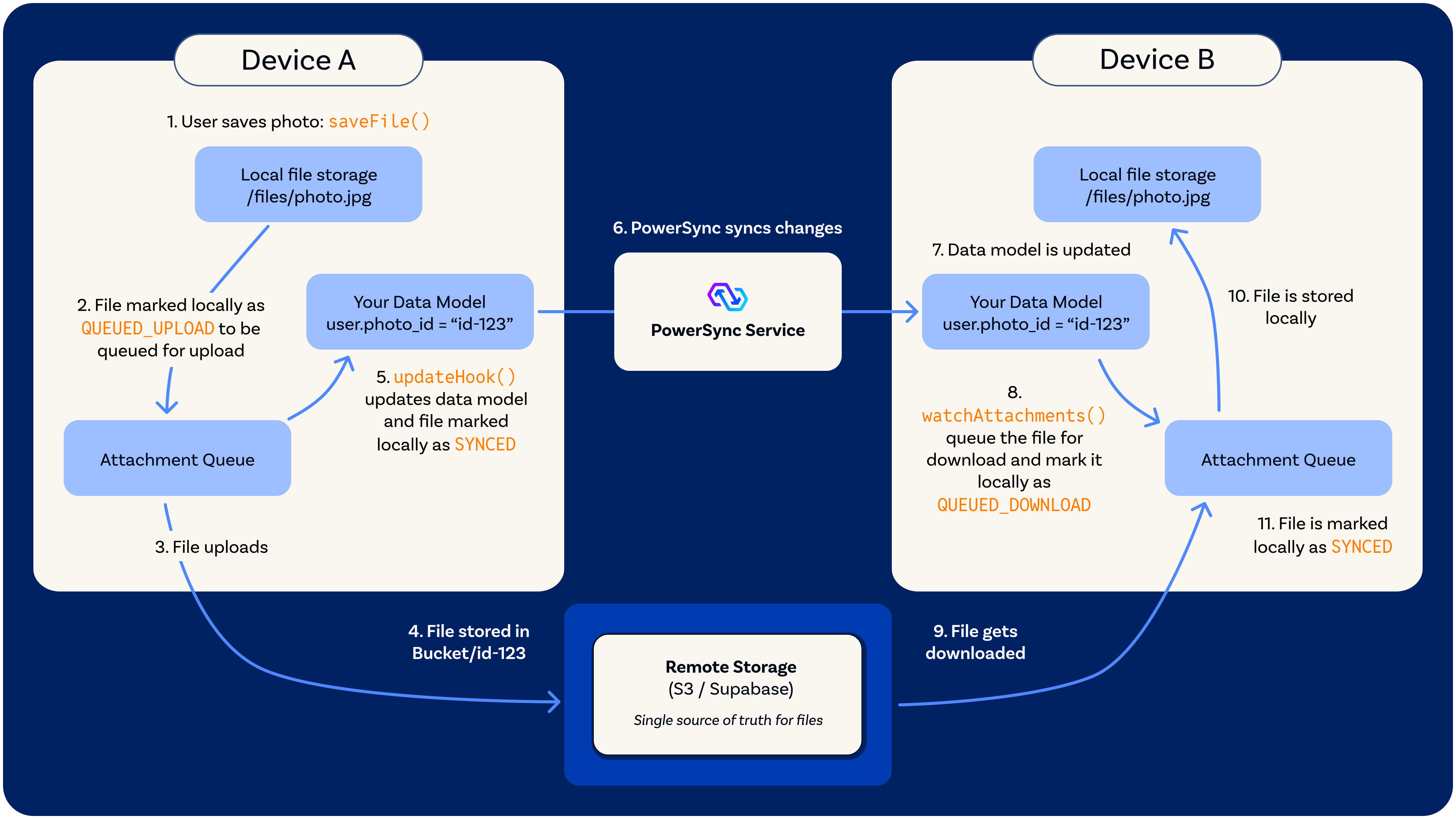
Workflow
- Save file - Your app calls
saveFile()with file data and anupdateHookto handle linking the attachment to your data model - Queue for upload - File is saved locally and a record is created in the attachments table with state
QUEUED_UPLOAD - Background upload - The attachment queue automatically uploads file to remote storage (S3/Supabase/etc.)
- Remote storage - File is stored in remote storage with the attachment ID
- State update - The
updateHookruns, updating your data model with the attachment ID and marking the file locally asSYNCED - Cross-device sync - PowerSync syncs the data model changes to other clients
- Data model updated - Other clients receive the updated data model with the new attachment reference (e.g.,
user.photo_id = "id-123") - Watch detects attachment - Other clients’
watchAttachments()callback detects the new attachment reference and creates a record in the attachments table with stateQUEUED_DOWNLOAD - File download - The attachment queue automatically downloads the file from remote storage
- Local storage - File is saved to local storage on the other client
- State update - File is marked locally as
SYNCEDand ready for use
Attachment States
| State | Description |
|---|---|
QUEUED_UPLOAD | File saved locally, waiting to upload to remote storage |
QUEUED_DOWNLOAD | Data model synced from another device, file needs to be downloaded |
SYNCED | File exists both locally and in remote storage, fully synced |
QUEUED_DELETE | Marked for deletion from both local and remote storage |
ARCHIVED | No longer referenced in your data model, candidate for cleanup |
Core Components
Attachment Table
The Attachment Table is a local-only table that stores metadata about each file. It’s not synced through PowerSync’s Sync Streams/Rules - instead, it’s managed entirely by the attachment queue on each device. Metadata stored:id- Unique attachment identifier (UUID)filename- File name with extension (e.g.,photo-123.jpg)localUri- Path to file in local storagesize- File size in bytesmediaType- MIME type (e.g.,image/jpeg)state- Current sync state (see states above)hasSynced- Boolean indicating if file has ever been uploadedtimestamp- Last update timemetaData- Optional JSON string for custom data
- Local-only - Each device maintains its own attachment table
- Automatic management - Queue handles all inserts/updates
- Cross-client coordination - Your data model (e.g.,
users.photo_id) tells each client which files it needs
Remote Storage Adapter
The Remote Storage Adapter is an interface you implement to connect PowerSync with your cloud storage provider. It’s completely platform-agnostic - Implementations can use S3, Supabase Storage, Cloudflare R2, Azure Blob, or even IPFS. Interface methods:uploadFile(fileData, attachment)- Upload file to cloud storagedownloadFile(attachment)- Download file from cloud storagedeleteFile(attachment)- Delete file from cloud storage
- Request a signed upload/download URL from your backend
- Your backend validates permissions and generates a temporary URL
- Client uploads/downloads directly to storage using the signed URL
- Never expose storage credentials to clients
Local Storage Adapter
The Local Storage Adapter handles file persistence on the device. PowerSync provides implementations for common platforms and allows you to create custom adapters. Interface methods:initialize()- Set up storage (create directories, etc.)saveFile(path, data)- Write file to storagereadFile(path)- Read file from storagedeleteFile(path)- Remove file from storagefileExists(path)- Check if file existsgetLocalUri(filename)- Get full path for a filename
- IndexedDB - For web browsers (
IndexDBFileSystemStorageAdapter) - Node.js Filesystem - For Node/Electron (
NodeFileSystemAdapter) - React Native - For React Native with Expo or bare React Native we have a dedicated package (
@powersync/attachments-storage-react-native) - Native mobile storage - For Flutter, Kotlin, Swift
Attachment Queue
The Attachment Queue is the orchestrator that manages the entire attachment lifecycle. It:- Watches your data model - You pass a
watchAttachmentsfunction as a parameter that monitors which files your app references - Manages state transitions - Automatically moves files through states (upload/download → synced → archive → delete)
- Handles retries - Failed operations are retried on the next sync interval
- Performs cleanup - Removes archived files that are no longer needed
- Verifies integrity - Checks local files exist and repairs inconsistencies
watchAttachments function you provide monitors your data model and returns a list of attachment IDs that your app references. The queue compares this list with its internal attachment table to determine:
- New attachments - Download them
- Missing attachments - Upload them
- Removed attachments - Archive them
watchAttachments queries are reactive and execute whenever the watched tables change, keeping the attachment queue in sync with your data model.
There are a few scenarios you might encounter:
Single Attachment Type
For a single attachment type, you watch one table. For example, if users have profile photos:
UNION or UNION ALL. This allows you to monitor attachments across different tables (e.g., users.photo_id, documents.document_id, videos.video_id) in one queue. Each attachment type may have different file extensions, which can be handled in the query by selecting the extension from your data model or using type-specific defaults.
For example:
UNION ALL when you want to include all rows (including duplicates), or UNION when you want to automatically deduplicate results. For attachment watching, UNION ALL is typically preferred since attachment IDs should already be unique.
The UNION query executes whenever any of the watched tables change, which may have higher database overhead compared to watching a single table. Implementation examples are shown in the Initialize Attachment Queue section below.
Multiple queues may use more memory, but each queue watches simpler queries. Implementation examples are shown in the Initialize Attachment Queue section below.
Implementation Guide
Installation
Setup: Add Attachment Table to Schema
Configure Storage Adapters
Initialize Attachment Queue
The
watchAttachments callback is crucial - it tells the queue which files your app needs based on your data model. The queue uses this to automatically download, upload, or archive files.Watching Multiple Attachment Types
When watching multiple attachment types, you need to provide thefileExtension for each attachment. You can store this in your data model tables or derive it from other fields. Here are examples for both patterns:
Pattern 2: Single Queue with UNION
Upload an Attachment
The
updateHook parameter is the recommended way to link attachments to your data model. It runs in the same database transaction, ensuring data consistency.Download/Access an Attachment
Delete an Attachment
Advanced Topics
Error Handling
Implement custom error handling to control retry behavior:Custom Storage Adapters
The following is an example of how to implement a custom storage adapter for IPFS:Verification and Recovery
verifyAttachments() is always called internally during startSync().
This method does the following:
- Verifies local files exist at expected paths
- Repairs broken
localUrireferences - Archives attachments with missing files
- Requeues downloads for synced files with missing local copies
Cache Management
Control archived file retention:Offline-First Considerations
The attachment queue is designed for offline-first apps:- Local-first operations - Files are saved locally immediately, synced later
- Automatic retry - Failed uploads/downloads retry when connection returns
- Queue persistence - Queue state survives app restarts
- Conflict-free - Files are immutable, identified by UUID
- Bandwidth efficient - Only syncs when needed, respects network conditions
Migrating From Deprecated Packages
If you are migrating from the now deprecated attachment helpers for Dart or JavaScript, follow the notes below:- powersync_attachments_helper (Dart)
- @powersync/attachments (JS)
A fairly simple migration from
powersync_attachments_helper to the new utilities would be to adopt the new library with a different Attachment Queue table name and drop the legacy package. This means existing attachments are lost, but will be re-downloaded automatically.Related Resources
- An Implementation Walkthrough Using The Flutter/Dart Attachment Helpers - Blog post on building offline-first uploads